Tuesday, 3 April 2018

Top 10 best rated games for android 2018

Top 10 Best Android Games 2018

When it comes to mobile gaming, Android no longer finds itself in the shadow cast by the iPhone. And that's good news if you've gotten your hands on a Galaxy S9, Pixel 2 XL or any brand new Android phone ready to fill up with all kinds of games. Browse through Google Play, and you’ll find a surplus of top games across a wide variety of genres. Whether it’s action and adventure, puzzle games, or titles that the entire family can enjoy, our roundup of the best games available for Android offers something for every kind of gamer.s are some of the most fun you can cram onto a phone or tablet. From story driven role-playing games, to white-knuckled racing games, to casual, cute puzzle games, you can find absolutely any kind of Android game in the Play Store.

Here is the top 10 rated android games of 2018!
(Note - All given below games are available in google playstore.)


Final Fantasy XV : Pocket Edition
Final Fantasy XV: Pocket Edition is a role-playing mobile game developed and published by Square Enix. The game is an abridged version of Final Fantasy XV for mobile devices. It was released for Android and iOS on February 8, 2018


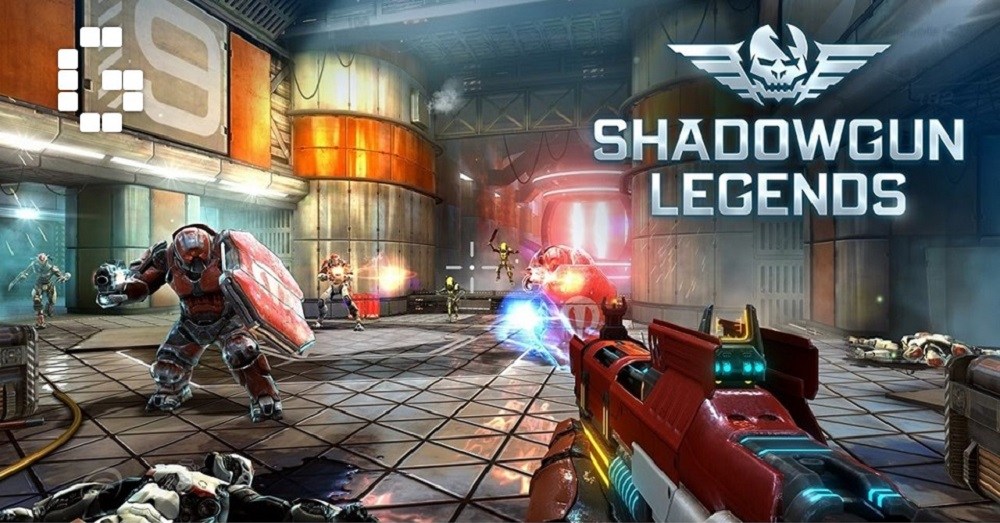
Shadowgun Legends
Shadowgun Legends is a free mobile first-person shooter video game developed and published by Madfinger Games for Android and iOS devices on 22nd March 2018.

Dandara
Dandara is a 2D platformer and Metroidvania game developed by Long Hat House and published by Raw Fury. in 2018


Hero Academy 2
“A brilliant game of tactical battles. 9/10” - Pocket Gamer
“The Clash Royale Hearthstone mashup you’ve been waiting for.” - Player.One


Marvel Strike Force
Marvel Strike Force is a turn-based RPG mobile game by FoxNext for Android and iOS platforms.The game is considered to be the Marvel equivalent of recently popular mobile turn-based RPGs based on licensed properties, such as Star Wars: Galaxy of Heroes and DC Legends.
The game was launched worldwide on March 28, 2018.


Harry Potter: Wizards Unite
Genre(s)Augmented reality, location-based game, Role-playing
Harry Potter: Wizards Unite is a free-to-play, location-based augmented reality game inspired by J. K. Rowling's Wizarding World and the Harry Potter franchise. The game is being published by Niantic and co-developed by Niantic and Portkey Games, a subsidiary of Warner Bros. Interactive Entertainment. It is set to launch in 2018 for Android and iOS mobile devices and expected to use augmented reality similar to Niantic's previous release Pokémon Go.

The Sims Mobile
The Sims Mobile is a life simulation game based on The Sims 4 and The Sims FreePlay for Android and iOS devices. It was announced on May 9, 2017 in a launch trailer. The game was released on March 6, 2018. 

Harry Potter: Hogwarts Mystery
Harry Potter: Hogwarts Mystery is a role-playing video game based on J. K. Rowling's Harry Potter series of books. The game is being developed by Jam City and is set to be published by Portkey Games in 2018 for Android and iOS devices


Rusty Lake Paradise
Jakob, the oldest son of the Eilander family, is returning to Paradise island after his mother passed away. Since her mysterious death, the island seems to be cursed by the ten plagues. Find the mother's hidden memories and partake in strange family rituals in order to stop the plagues.
Rusty Lake Paradise is the third premium point-and-click adventure by Rusty Lake, the creators of the Cube Escape series, Rusty Lake Hotel & Rusty Lake: Roots.


Super Meat Boy Forever
Super Meat Boy Forever is an independent video game developed by Team Meat for Nintendo Switch, PlayStation 4, Xbox One, iOS, Android, Microsoft Windows and Linux


Also read : Android P: things you need to know!

Top USB Bootable Softwares 2018


In this article, i will explain how can you make bootable pendrive for windows
and what are the application required to do this task.

What is Bootable pendrive?

A bootable pendrive acts as a replacement of previously used CD-ROM which can be used to install various operating systems on a computer system at the time the computer has loaded its BIOS settings. Also USB boot is the process of using a USB storage device to boot or start a computer’s operating system. It enables computer hardware to use a USB storage stick to get all essential system booting information and files rather than the standard/native hard disk or the CD drive. A common use of a bootable USB flash drive is to use it to boot into Windows. To determine if a computer is capable of booting to a USB device, access the computer's BIOS and check the bootable device list. If a USB device is listed, set the USB Flash Disk to be the first boot device.

Why USB not DVD?

These days installation of an operating system has been changed completely. Previously CD’s and DVD’s were used for installation of any operating system. There are many other ways to install an operating system in a computer like, by making a bootable USB FLASH DRIVE or even by flashing your sd card and connect it via card reader.
The difference between DVD and USB FLASH DRIVE installation varies with speed. Bootable USB drive will consume bit lesser time to install any operating system when compared to DVD installation. Also, this will be helpful for most of the people who are regularly engaged in installing operating systems because carrying a DVD.

Some Softwares listed below is used to make bootable USB-


1. Rufus

2. YUMI

3. RMPrepUSB

4. Universal USB Installer

5. WinToBootic

6. WinSetUp From USB

7. Linux Live USB Creator (LiLi)

8. UNetBootin

9. XBoot

10. Passcape ISO Burner


Saturday, 31 March 2018

Android SDK


 Android SDK and Tools

what is android SDK?

SDK(Software Development Kit) provides a selection of tools required to build Android apps or to ensure the process goes as smoothly as possible. Whether you end up creating an app with Java, Kotlin or C#, you need the SDK to get it to run on an Android device and access unique features of the OS. You’ll also be able to use an emulator to test apps you’ve built, monitor your device, and do a host of other things. These days, the Android SDK also comes bundled with Android Studio, the integrated development environment where the work gets done and many of the tools are now best accessed or managed. You can download the SDK independently however if that is your preference.

Installing the Android SDK and Tools

  • Download and Install the Android Software.
  • Go to the Android SDK download page at https://www.androidauthority.com/android-sdk-tutorial-beginners-634376/
  • Scroll to the bottom of the page and expand GET THE SDK FOR AN EXISTING IDE.
  • Click Download the stand-alone Android SDK Tools for Windows.
  • Click Download the SDK Tools for Windows, and then click Save File.
  • Save and then run installer_rversion-windows.exe to start the Android SDK Tools Setup wizard.
  • On the Welcome page, click Next.
  • After the wizard detects where the Java SE Development Kit is installed, click Next.
  • On the Choose Users page, select whether to install for anyone using the computer or just yourself, and then click Next
  • On the Choose Install Location page, enter the destination folder, such as C:\Android\android-sdk, and then click Next.
  • On the Choose a Start Menu folder page, select the Start Menu folder or select Do not create shortcuts, and then click Install.
  • After the installation completes, click Next.
  • Ensure that Start SDK Manager is selected, and then click Finish.


                            BSNL announce new prepaid packs to compete with Relaince Jio

                            BSNL announce new prepaid packs to compete with Relaince Jio


                            BSNL has released a bunch of new prepaid packs that give users data and call benefits. The Rs 118 prepaid pack gives users 1GB 3G/ 4G data, along with unlimited voice calls. The unlimited voice calls include roaming except for Delhi and Mumbai. The validity of the plan is 28 days. Users of the Rs 118 plan will also get free access to Personalised Ring Back Tone which is valid only in Tamil Nadu.

                            The next BSNL prepaid pack is priced at Rs 379 and offers users 4GB of 3G/ 4G data per day along with unlimited BSNL-to-BSNL voice calls restricted to 30 minutes per day. The validity of the pack is 30 days and is valid only in Kerala.

                            The Rs. 551 prepaid pack gives users 1.5GB 4G data per day. After the cap of 1.5GB, the speed will drop to 80Kbps. The plan also gives users access to Personalised Ring Back Tone. 

                            The Rs. 118 pack directly takes on the Rs. 98 pack from Reliance Jio that offers a total of 2GB 4G data, truly unlimited voice calls, 300 SMS messages, and complimentary subscription to Jio's suite of apps with a validity of 28 days.

                            Lastly, the Rs. 485 prepaid pack provides users with 1GB data per day, unlimited voice calls, 100 SMS messages per day, and has a validity of 90 days.


                            News Source

                            And Stay tuned for more upcoming news


                            MediaTek MT6737 vs Qualcomm Snapdragon 430

                             MediaTek MT6737 vs Qualcomm Snapdragon 430

                             Mediatek MT6737

                            The MediaTek MT6737 is a 64-bit ARM-based SoC announced in 2016 primarily designed for smartphones (mainly Android devices). It is manufactured in a 28 nm process and consists of four CPU cores based on the 64-bit Cortex-A53 architecture clocked at up to 1.35 GHz (MT6737T up to 1.5 GHz). The GPU is an ARM Mali-720 MP2. It integrates a Cat.4 LTE modem with CDMA200 as well as a video de- and encoder for 1080p30 videos (H.264 and H.265).


                            Processor Type

                            The Cortex-A53 is the successor to the popular Cortex-A7 design. In addition to the jump from 32-bit to 64-bit architecture (ARMv8 ISA) to address more than 4 GB of memory, the new design offers better branch prediction and higher performance-to-power ratio that rivals the Cortex-A9. The four cores of the MT6737 are clocked at up to 1.35 GHz and are roughly on par with the Snapdragon 410 (4x Cortex-A53 at 1.2 to 1.4 GHz). The processor is fit for common tasks like browsing and running light applications.

                            Gaming (graphics)

                            The MT6737 chip is integrated with the Mali-T720 GPU which has a frequency of 550-650 MHz. The maximum display resolution that it can support is 1280×720. This Graphics Processor isn’t powerful enough to compete with the likes of Adreno 505, Adreno 506 and the other majority of Qualcomm GPUs. Running basic Android games will not result in any lags or FPS drops but high-end games can suffer from occasional frame drops. Also, being manufactured using the 28nm Fabrication Process, long gaming sessions could result in overheating. If you love gaming on your phone, this SOC is not for you.

                            General Performance

                            For basic phone usage like web browsing, calling, multitasking and using Social Media apps like WhatsApp, Facebook, Snapchat, Instagram, this processor is sufficient. Even though you would get decent performance, there could be occasional lags on heavy usage. The performance also depends on the phone’s software and that includes the User Interface. Stock Android will give better performance while heavily skinned UIs may not perform that great. If we go by the specs, it has a quad-core configuration of Cortex-A53 CPUs at a very low frequency. For better performance, I will recommend Snapdragon 435 instead.


                                                  Snapdragon 430


                            The Qualcomm Snapdragon 430 (SD430) is a lower mainstream SoC for (Android based) smartphones and tablets. Contrary to the Snapdragon 630, it is still manufactured in a 28-nm process and also consists of an octa-core CPU part with ARM Cortex-A53 cores. However, they are only clocked at up to 1.4 GHz. The integrated X6 LTE modem supports Cat. 4 with maximum transfer rates of 150 Mbps (downstream) and 75 Mbps (upstream). The SoC also includes an Adreno 505 GPU with support for Vulkan and OpenGL ES 3.1. WiFi 802.11ac and Bluetooth 4.1 are supported as well. The memory controller supports LPDDR3 clocked at 800 MHz (so probably dual-channel DDRL-1600). 

                            Moving on to graphics, it has the Qualcomm’s Adreno 505 Graphics Processor running at a frequency of 450 MHz. This GPU can support a maximum screen resolution of 1080p (Full HD). It can also playback 1080p videos with ease. However, in gaming, it gives better results with a 720p (HD) display. Moving on to the Memory, it has LPDDR3 RAM at a clock frequency of 800 MHz. This SOC only has a Single Memory Channel.


                            Advantage

                            Even in the low-budget segment, Qualcomm is providing premium features such as Quick Charge 3.0, 2x Image Sensor Processor, NFC Support, and the X6 LTE Modem that can give speeds up to 300 Mbps. However, you should note that features like Fast Charging and NFC may or may not be enabled by your smartphones’ OEM.


                            Gaming (graphics)

                            The Adreno 505 GPU is clocked at 450 MHz and is capable of running almost every game at 720p without any issues. However, with a 1080p display, you will get a lower frame rate and you could experience occasional frame drops. Being made on the 28nm Fabrication Technology, the smartphone could heat with heavy gaming. This is one of the reasons why I always a recommend 14nm Processor like Snapdragon 625 for gaming. Nevertheless, the Snapdragon 430 is a decent chipset for gaming.


                            General Performance

                            In daily usage and multi-tasking, you will not face any lags. Running Social Media Apps, Browsing, Audio & Music Playback, and Chatting experience will be good. The Cortex-A53 Cores @ 1.4 GHz are certainly capable of all these stuff with ease. However, with heavy usage on a heavily skinned OS/UI, you could face occasional lags. The user experience will also depend on the phone and the User Interface.


                            Thursday, 29 March 2018

                            How to boot in safe mode

                            How to boot in safe mode

                            'When the problem arises in your pc due any issues.Then the best method of dealing with 
                            your problem is to boot the window in "safe mode".

                            What is safe mode in window?

                            Safe mode is a diagnostic mode of a computer operating system (OS). In Windows, safe mode only allows essential system programs and services to start up at boot. Safe mode is intended to help fix most, if not all problems within an operating system. It is also widely used for removing rogue security software.
                            Safe Mode starts your PC with a minimal set of drivers and services. No third-party software or drivers get loaded, and even the built-in Windows stuff is limited to just what’s necessary. Safe Mode is a great way to remove problem-causing software—like malware—without that software getting in the way. It also provides an environment where you may find it easier to roll back drivers, and use certain troubleshooting tools

                            So now the question is how to boot it in safe mode? The steps is very simple just follow
                            the mentioned steps:-

                            For window 7 ,8, and 10 users.
                            1. Restart your PC .
                            2. And press F8 buttom 3 to 4 Times when the window restarted (Keep in mind that window should not boot).
                            3. Now the List of Safe mode will appear on the screen.
                            4. select any of the listed mode as per your requirements.
                            5. done!


                            Wednesday, 28 March 2018

                            Android Unknown feature

                            Android Accessibility feature

                            The Android system, has a number of accessibility options built in for those hard of hearing, suffering from a vision impairment or any other number of other conditions that might make the standard operation of your Android difficult. These are great features to be sure, but you don't need to be as blind as me to take advantage of them. 

                            Here's Eight accessibility settings you should be using.

                            1.Magnification gestures- 
                            You know how we've shown you cool one-handed Google Maps gestures in the past, like for zooming in and out? Well, you can do the same thing system wide with the magnification gestures accessibility option. If you enable the option you can triple tap to zoom in and triple tap to zoom out again. If you triple tap and hold, you can temporarily magnify your screen and pan around, then just release to go back to normal. It's a super useful feature once you start using it.


                            2.Text-to-Speech- 
                            Probably the most well known of all accessibility features, you may have even used this already. All you need to do is to have the Google Text-to-Speech engine enabled and then download the language pack you want.

                            I use Text-to-Speech as a simple way to finally get through all the content I save to Pocket for later reading. Which I never get around to. So I simply hit the menu button in an article I've saved to Pocket and let Google read the article to me while I prepare dinner.

                            3.Invert colors- 
                            If you have a Samsung or any other phone and don't really like the dark background vibe, you can simply go into the accessibility settings and check the box next to  invert Colors.You will now have a white themed TouchWiz interface. 

                            The same thing works on the LG G3 too, where it is called Invert Colors, but as you can see in the topmost image, you might get some pretty whacky color combinations. Likewise, both Samsung and LG's accessibility options allow you to adjust screen and content colors for your particular visual needs.

                            4.TalkBack- 
                            TalkBack is awesome, especially if your eyesight is as bad as mine or you've lost your glasses. You can even use this if your screen has issues, as long as your touchscreen is still responsive. Once you've enabled the option, whatever you tap, press or activate will be spoken aloud to you. Explore by Touch is the same thing under a different name. The additional settings for TalkBack are enormous and definitely worth checking out further. 

                            5.Interaction control- 
                            Interaction control appears on Samsung devices either through the accessibility menu or by pressing Home and the Volume Down buttons. It lets you turn your motion gestures and screen timeout settings on or off, but the coolest part of it is that you can block off specific areas of the screen from responding to touch input, like the status bar or notification shade.

                            6.Captions-
                            Enables the system wide closed caption system for videos. Having been introduced in KitKat it's still possible some users haven't had chance to try it out yet. It allows videos to display captions based on the parameters decided upon here, and you can change the text size and color within set parameters.

                            7.Touch and Hold Delays-
                            For those with dexterity issues, how long you need to press and hold to complete actions could be an issue. This allows you to alter the duration required to three different settings.

                            8.Color Correction-
                            We touched on this when the first L Preview dropped, though for whatever reason Google has since reduced the number of options from 6 to 3. In any case, there are options to change the display mode based on different types of color blindness: Deuteranomaly (red-green), Protanaomaly (red-green) and Tritanomaly (blue-yellow).


                            Popular Posts